
Image Tools
Image Resizer Online
Resize images online for free in seconds. Upload a photo, set width and height, keep aspect ratio, and download the resized image instantly.
Related
Other Image Tools
Overview
What is an Online Image Resizer?
An online image resizer changes the pixel dimensions of a photo so it fits websites, forms, social platforms, or storage limits while keeping the image usable.
How to use
How to use this tool
- 1
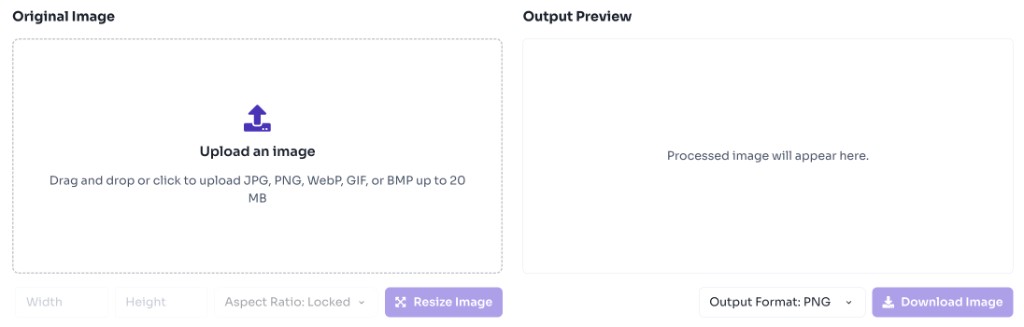
Upload Your Image
Upload a JPG, PNG, WebP, GIF, or BMP image to get started.
- 2
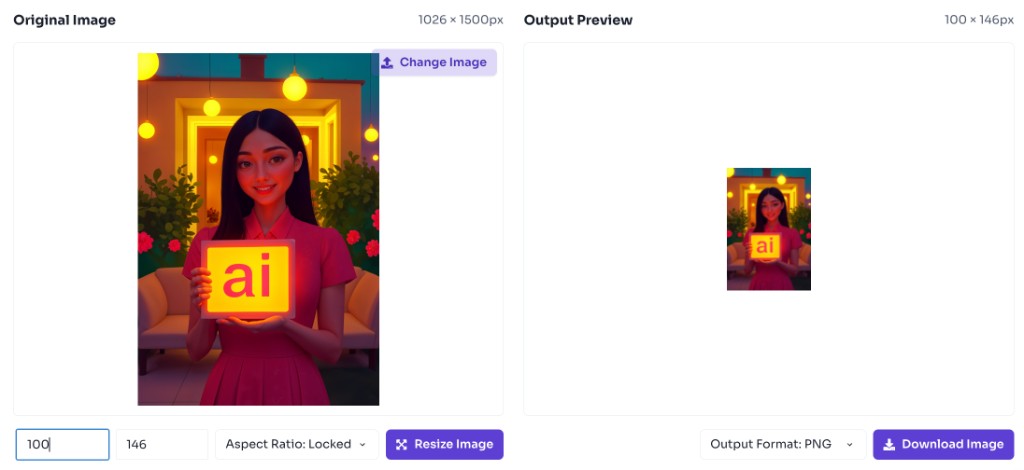
Set Dimensions
Enter the target width and height. Enable lock aspect ratio to preserve proportions.
- 3
Choose Output Format
Select PNG, JPEG, or WebP for the resized download.
- 4
Download Resized Image
Preview the result and download the resized image instantly.
Why use it
When to use Online Image Resizer?
Use an online image resizer when the pixel dimensions of a photo matter more than reframing it. Resizing helps images fit upload limits, layout requirements, and performance goals.
- Reducing image file size for faster website loading and email attachments
- Matching platform requirements for blogs, forms, and application uploads
- Creating consistent image dimensions across a product catalog or gallery
- Preparing images for presentations, documents, and slide decks
- Generating smaller preview versions while keeping the original aspect ratio
Features
Benefits
Resize to exact width and height
Resize to exact width and height
Lock aspect ratio to avoid distortion
Lock aspect ratio to avoid distortion
Export as PNG, JPEG, or WebP
Export as PNG, JPEG, or WebP
Preview resized output before download
Preview resized output before download
Private browser-based processing
Private browser-based processing
FAQ
Frequently asked questions
Quick answers about Image Resizer.
Making an image smaller usually keeps good visual quality. Enlarging images may look softer because new pixels are interpolated.
Explore
More tools you may like
Newsletter
Stay Updated
Subscribe to FrontendGeek Hub for frontend interview preparation, interview experiences, curated resources and roadmaps.